Showing posts with label sharepoint designer. Show all posts

Wednesday, December 30, 2015

How to apply css to a web part in share point 2013/Office 365


How to apply css to a particular web part in share point 2013/ office 365 using share point designer 2013

you need to find a web part id in order to apply css to that particular web part.

open that page right click on the page select View page source

search for MSOZoneCell_WebPartWPQ and there will be an id associated with it. for example,

MSOZoneCell_WebPartWPQ2, MSOZoneCell_WebPartWPQ3 etc so lets consider you want to apply css to the web part having id MSOZoneCell_WebPartWPQ2


Now, edit that page with share point designer 2013


Open page with advanced mode.


search for this code:


after

.s4-ca{margin-left:0px;
}

copy paste following code (remember, you can always change it as per your need !)

#MSOZoneCell_WebPartWPQ2 .ms-webpart-chrome-title
{
background: rgba(73,155,234,1);
background: -moz-linear-gradient(left, rgba(73,155,234,1) 0%,
rgba(255,255,255,1) 100%);
background: -webkit-gradient(left top, right top, color-stop(0%,
rgba(73,155,234,1)), color-stop(100%, rgba(255,255,255,1)));
background: -webkit-linear-gradient(left, rgba(73,155,234,1) 0%,
rgba(255,255,255,1) 100%);
background: -o-linear-gradient(left, rgba(73,155,234,1) 0%, rgba(255,255,255,1)
100%);
background: -ms-linear-gradient(left, rgba(73,155,234,1) 0%, rgba(255,255,255,1)
100%);
background: linear-gradient(to right, rgba(73,155,234,1) 0%, rgba(255,255,255,1)
100%);
filter: progid:DXImageTransform.Microsoft.gradient( startColorstr='#499bea',
endColorstr='#ffffff', GradientType=1 );
font-size: 15px;  
font-weight: bold;
color: white;
padding: 5px 5px;
border: 0.1em yellow;
 border-top-left-radius: 1em;
-moz-border-radius: 0.3em;
-webkit-border-radius: 0.3em;
display:block;
//your css styling goes here
}
save and click on preview in browser . you are done !

here is the result-


Thursday, September 18, 2014

Workflow to send/receive email notification in Share Point 2010 / 2013


hello everyone,

You need to read and know about intro to workflow , lookup , impersonation before getting started. Let's talk about the share point workflow.I have observed there are very few posts about how to create a workflow using Share Point Designer.


today we will see how to create a workflow to send an Email notification to the user/customer.just follow below steps and you can easily learn about creating a workflow in share point.
    first of all create a list.
          For example, i created a list called Registration
          Create 3 fields Title , EmpID and EmpName

    • Open Share Point Designer 2010/2013
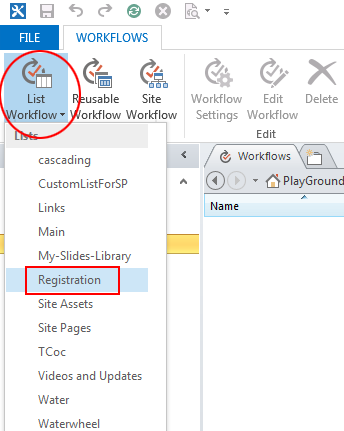
    • go to workflows, click on 'list workflow' select the list name 'Registration'
    • see image below for your reference 


    • Name your workflow. you can give any name you want. i have named it as "Registrationwrkflow"


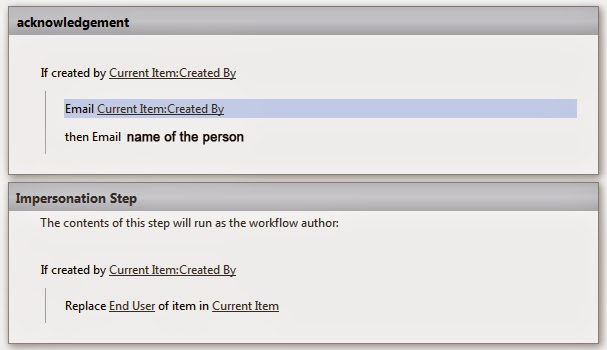
    • now you need to create something like this. for this , you must know about lookup and impersonation steps in SharePoint Designer.(Sorry ,but you must learn it on your own !)


          we are almost there, just few steps and you are done.*

    • after creating workflow, click on 'save'   
    • go to the workflow start options. your settings should look like below image.


    and then 'publish' your workflow.Keep in mind, workflow can not start unless you 'publish' it.
    try to add an item and check for workflow status (you can enable workflow status column from list settings > views> all items> workflow name).


    *Note-To test the workflow, you can put your email id  in "mail" option so that you can get a notification.

    have fun !